
QR Code Design Guidelines
Create QR codes that look professional and scan reliably across digital screens, printed materials, branded campaigns, and 3D printable designs.
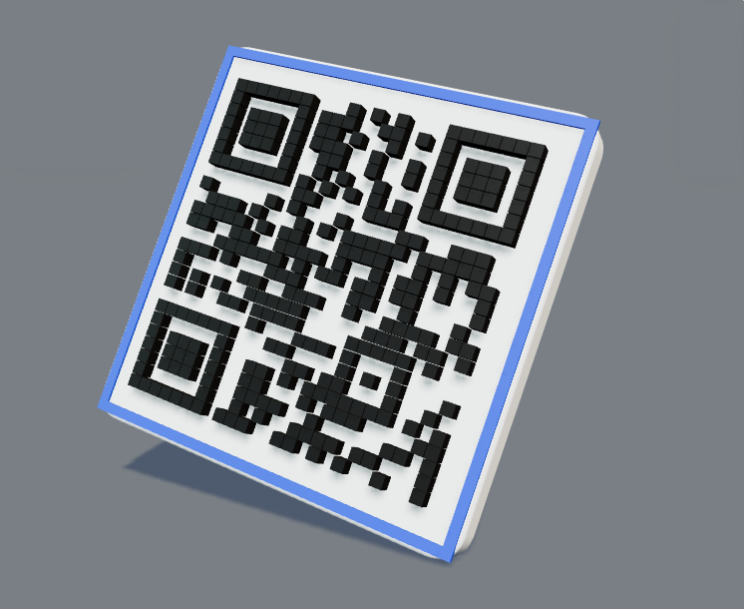
Quick Summary
If you only remember a few things, keep these rules close. Most scan problems come from weak contrast, cramped padding, oversized logos, or printing too small.
- Use dark QR colors on a light background
- Keep a clear quiet zone around the QR
- Use SVG or PDF for print
- Keep logos under 20% when possible
- Test before printing or publishing
Best QR Code Size
A QR code needs enough physical or pixel space for each module to stay clear. For signage, use the simple distance rule: QR width should be about 1/10 of the expected scan distance.
Print Size
| Use case | Recommended size | Notes |
|---|---|---|
| Minimum print size | 2 x 2 cm, about 0.8 x 0.8 in | Use only for clean, simple QR codes. |
| Business card | 0.8 to 1 in | Keep the design simple and test a printed proof. |
| Flyer or postcard | 1 to 1.5 in | Best for hand-held scanning. |
| Letter-size print | 1.25 to 2 in | Works well for forms, menus, and handouts. |
| Poster | 2 to 4 in | Increase size as scan distance grows. |
| Wall sign | 4 in or larger | Use high contrast and a large quiet zone. |
| Outdoor signage | About 1/10 scan distance | Example: a 40 in scan distance needs about a 4 in QR. |
Digital Size
| Use case | Recommended size | Best export |
|---|---|---|
| Small preview | 150 x 150 px minimum | PNG |
| Standard web display | 300 x 300 px | PNG or SVG |
| Downloadable PNG | 1080 x 1080 px | High-res PNG |
| Professional artwork | Scale as needed | SVG or PDF |
| Retina screens | 2x display size | SVG when available |
Quiet Zone and Padding
The quiet zone is the clear empty margin around the QR code. Cameras use it to understand where the QR begins and ends.
Use at least 4 modules on every side. For print, logo QR, and 3D printable QR, use 6 to 10 modules when the layout allows it.
| QR type | Padding recommendation |
|---|---|
| Digital QR | 4 modules minimum |
| Printed QR | 6 modules or more |
| Logo QR | 6 to 10 modules |
| 3D printable QR | 6 to 10 modules |
Color and Contrast
The safest design is a dark QR on a light background. Avoid pale colors, busy transparent backgrounds, and inverted QR codes unless you test them on real devices.
QR Eye Color
The three corner eyes should stay strong, dark, and clear. If the eyes are pale, blurred, or hidden by a frame, phones can miss the QR even when the body pattern looks readable.
Dark eyes on a light background with clean square or rounded-square shapes.
Gradient or brand-color eyes are fine only when contrast stays strong.
Transparent, low-contrast, tiny, or heavily decorated eyes.
QR Shapes
Shape changes can make a QR feel more branded, but reliability still comes first.
Maximum reliability for print, small sizes, and 3D printing.
A modern branded look that usually scans well.
Use dots only when the QR is large enough and contrast is strong.
Avoid thin lines and overly decorative module shapes for print.
Logo Inside QR Code
A centered logo can work well when it is not too large and the QR uses high error correction. Leave a small clean area around the logo so the brand mark does not collide with QR modules.
| Logo size | Reliability guidance |
|---|---|
| 10% to 15% | Best reliability |
| 15% to 20% | Standard branded QR |
| Up to 25% | Use only with large QR and H error correction |
| More than 30% | Discouraged unless heavily tested |
Error Correction
Error correction lets a QR code recover when part of the code is damaged, covered, styled, or slightly distorted.
| Level | Recovery | Best use |
|---|---|---|
| L | About 7% | Clean digital use with no logo |
| M | About 15% | Standard static QR and most dynamic QR codes |
| Q | About 25% | Print use and light customization |
| H | About 30% | Logo QR, outdoor QR, heavy design, 3D QR, and 3D printable QR |
Digital QR Best Practices
Use at least 300 x 300 px for standard placement and keep it away from busy backgrounds.
Keep the QR crisp and avoid scaling a tiny image up after export.
Use high contrast and enough display size for the expected viewing distance.
Print QR Best Practices
Print adds ink spread, paper texture, glare, and distance. Use Q or H error correction, export as SVG or PDF, keep the quiet zone visible, and test a printed proof at the real size.
Print one copy, scan it with both iPhone and Android, and test it from the real viewing distance.
3D QR Design Best Practices
Use strong contrast, minimal distortion, enough padding, square or slightly rounded modules, and simple lighting.
Avoid heavy shadows, glare, reflections, and extreme angles that hide the top-down QR pattern.
3D Printable QR Best Practices
For STL and physical prints, treat the QR as a functional surface. The best printable QR codes use square modules, matte material, strong contrast, and enough module size for the printer nozzle and camera.
| Setting | Recommendation |
|---|---|
| Small keychain | 45 to 60 mm |
| Product tag | 60 to 80 mm |
| Desk sign | 80 to 120 mm |
| Wall plate | 120 mm or larger |
| Module size | 1.2 mm minimum, 1.5 to 2 mm safer |
| Raised module height | 0.8 to 1.5 mm |
| Base thickness | 2 to 4 mm |
| Quiet zone | 6 to 10 modules |
| Material | Matte, non-reflective colors |
UniQrOnline Recommended Defaults
Error correction M, dark modules, light background, 4+ module quiet zone.
Error correction M or Q, clear redirect destination, test after each URL edit.
Error correction H, centered logo, logo under 20% when possible.
Error correction Q or H, SVG/PDF export, printed proof before bulk production.
Error correction H, square modules, 6 to 10 module quiet zone, matte contrast.
Helper Text for QR Creator
Dashboard Helper Text
This preview shows the saved QR artwork. Test the exported file before publishing.
Dynamic QR codes can keep the same printed code while the destination changes.
Use a clear top-down view when checking scan reliability for 3D renders.
Download the STL preview and scan a test print before producing final pieces.
Warning Messages
This color combination may not scan reliably. Use a darker QR color or a lighter background.
The logo covers too much of the QR. Reduce the logo size or use H error correction.
The QR needs more empty space around the edges for reliable scanning.
This QR may be too small for print. Increase the physical size or simplify the design.
Modules may be too small for a reliable physical print. Increase the plaque size or reduce QR complexity.
Final Checklist
Use this list before sending a QR code to a client, printer, campaign, or 3D printer.
- Scan with iPhone and Android
- Test from the expected distance
- Confirm size
- Confirm quiet zone
- Confirm contrast
- Confirm logo size
- Confirm QR eyes are clear
- Export as SVG, PDF, or high-resolution PNG
- Test actual printed size
- Test the physical 3D printed piece if applicable